How to Use Codex Computer Use: A Practical Guide for Setup, Testing, and UI Work
A practical guide to Codex Computer Use: when to use it, how to enable it on macOS, how to write good prompts, where it fits against the in-app browser and plugins, and how to stay safe.
 FekriApril 20, 20263 min read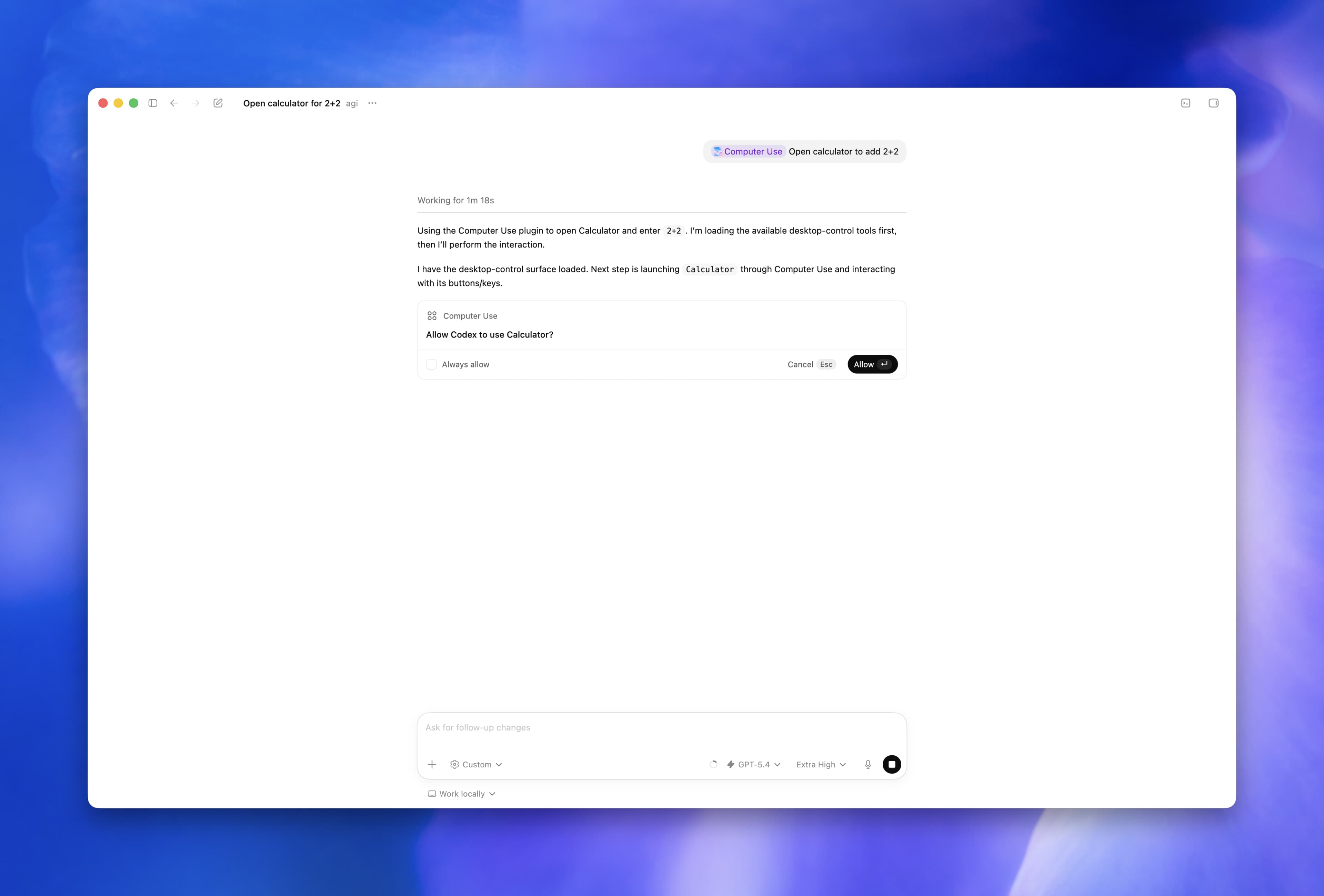
OpenAI turned Codex into something much more useful on April 16, 2026: not just an agent that edits code, but an agent that can work with the actual interfaces you use every day.
That is what Codex Computer Use is for.
As of April 20, 2026, the official Computer Use docs describe it as a macOS feature in the Codex app. The docs also say it is not available at launch in the European Economic Area, the United Kingdom, and Switzerland. Separately, OpenAI's Codex app launch post says the Codex app itself became available on Windows on March 4, 2026. That means the app is broader than the Computer Use feature right now, and it is worth being precise about that difference.
This guide is not a launch recap. It is a practical walkthrough of when Computer Use helps, when it does not, how to turn it on, how to prompt it well, and how to keep it from doing dumb or risky things.
The video above is the official OpenAI demo linked from the OpenAI Developers homepage. It is the fastest way to get a visual sense of where the Codex app is going before you start using Computer Use yourself.
TL;DR
- Use Computer Use when Codex needs to inspect or operate a real graphical interface.
- For localhost web apps, OpenAI recommends trying the in-app browser first.
- To enable it on macOS, install the Computer Use plugin in Codex settings and grant Screen Recording plus Accessibility permissions.
- You can start a task by mentioning
@Computer Useor a specific app such as@Chrome. - Good prompts are narrow: one app, one flow, one success condition.
- Stay present for sensitive flows, especially when a browser is signed in.
Why this matters in practice
Most of the pain in real software work is not writing a line of code. It is the gap between the code and the interface:
- the signup flow compiles, but the browser still breaks
- the settings screen looks fine in code review, but the labels are wrong in the app
- the simulator bug cannot be understood from logs alone
- the desktop app you need to inspect has no API and no plugin
That gap is where Computer Use becomes valuable.
OpenAI's April 16, 2026 update pushed Codex beyond a pure coding assistant and into a broader workflow agent. That matters because the work loop gets tighter. Instead of writing code in one place, opening a browser yourself, reproducing the issue manually, then coming back with notes, Codex can stay in the loop longer:
- inspect the workspace
- change the code
- open the relevant interface
- verify whether the real flow works
- report back or keep iterating
That does not make Computer Use the right tool for every task. It makes it the right tool for the moment when the job becomes visual.
What Computer Use is actually for
Computer Use is the bridge between your code and the UI that code produces.
If Codex can solve the task by reading files, running commands, or using a plugin, that is usually the better route. But some work is visual by nature:
- checking whether a signup flow really works in a browser
- reproducing a bug that only appears in a GUI
- stepping through an iOS simulator flow
- changing settings that only exist in a desktop app
- inspecting a tool that has no plugin or structured integration
That is the right mental model. Computer Use is not "let the agent do anything." It is "let the agent work visually when text and terminal output are not enough."
Pick the right surface first
One of the easiest ways to get better results from Codex is to choose the right surface before you even write the prompt.
| If the task is... | Use this first | Why |
|---|---|---|
| Reading files, editing code, running tests | Normal Codex thread | Fastest and most reliable path |
| Checking a localhost web app you are building | In-app browser | OpenAI explicitly recommends it for local web apps |
| Operating a desktop app, a real browser, or a simulator | Computer Use | The task depends on a GUI |
| Reading or updating data in GitHub, Slack, Linear, or another supported tool | Plugin or MCP server | Structured access is more reliable than visual automation |
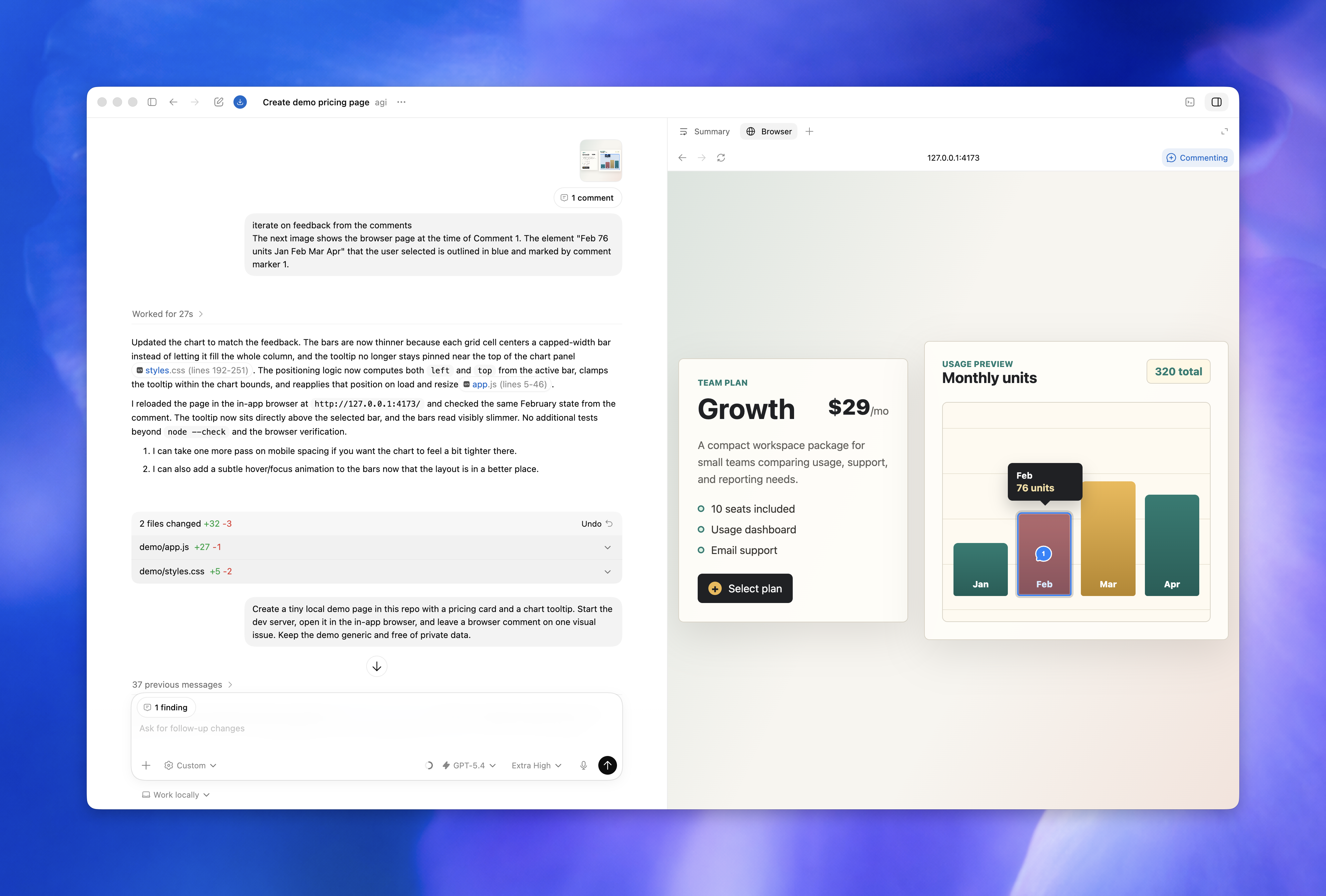
If the app exposes a plugin or MCP server, prefer that route for repeatable operations and clean data access. Use Computer Use when Codex needs to inspect or operate the app visually.
What a real Computer Use session looks like
The docs become much easier to understand once you picture the actual session flow.
1. You name the tool or app
You can start by mentioning @Computer Use directly or by naming an app such as @Chrome. That gives Codex a clear surface to target instead of forcing it to infer where the task should happen.
2. Codex asks for app approval
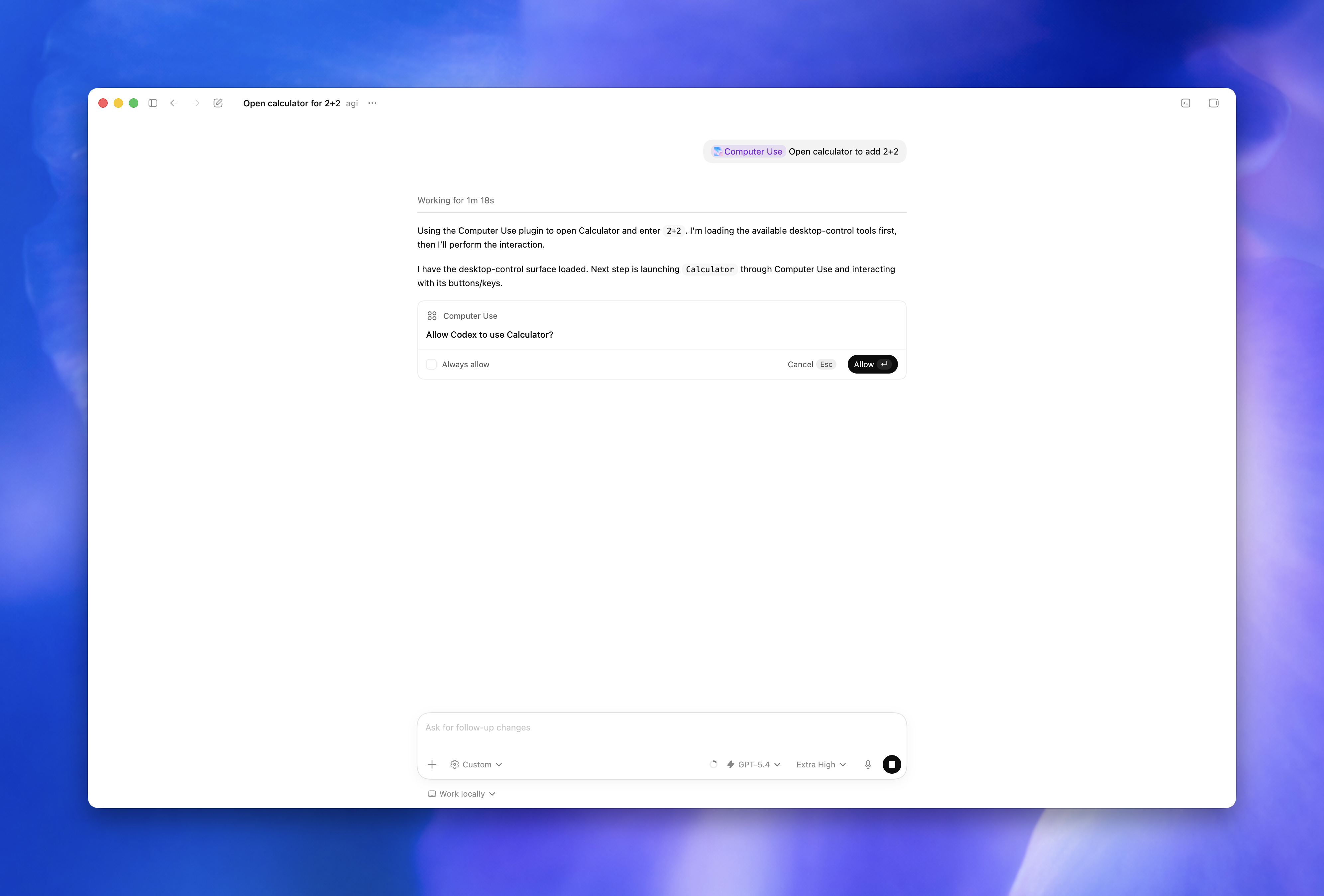
Before Codex starts operating an app, it asks for permission. You can allow once or allow it for future runs. That approval step is important because it keeps visual automation from turning into blanket machine access.
3. Codex operates the interface
Once approved, Codex can inspect visible state, move through windows and menus, click, type, and navigate the target app. This is the point where it is no longer just reasoning about code or files. It is acting on the interface itself.
4. You redirect if it starts drifting
The best sessions are not fully hands-off. They are supervised. If Codex opens the wrong window, starts checking the wrong page, or misreads what success should look like, you interrupt and narrow the task.
5. You save and review the useful outputs
OpenAI notes in the docs that changes made through desktop apps may not show up in Codex review until they are saved to disk and tracked by the project. That matters in practice. If Codex edits something visually and you expect it to appear in the normal workspace review, make sure the change actually lands on disk.
Before you turn it on
There are three practical things to understand before you enable Computer Use.
1. The feature is narrower than the app
As of April 20, 2026, OpenAI's docs say:
- the Codex app is available on macOS and Windows
- Computer Use is currently documented for macOS
- Computer Use is not available at launch in the EEA, UK, and Switzerland
That matters because plenty of people will see "Codex app on Windows" and assume Computer Use ships the same way there. The current docs do not say that.
2. macOS permissions and Codex approvals are separate
OpenAI's docs make a useful distinction here:
- macOS permissions let Codex see and operate apps
- Codex approvals decide which apps you allow it to use
That separation is good. It means enabling Screen Recording and Accessibility does not mean Codex automatically gets free access to every app on your machine forever.
3. There are hard limits
According to the docs, Computer Use cannot:
- automate terminal apps
- automate Codex itself
- approve security and privacy permission prompts on your computer
- authenticate as an administrator for you
That is deliberate. Those limits are part of the safety model.
How to enable Codex Computer Use on macOS
This is the clean setup path from the official docs.
1. Install or update the Codex app
Make sure you are on a current build of the Codex app. OpenAI announced the broader Computer Use rollout in the April 16, 2026 product update, so older builds may not match the current docs.
2. Open Codex settings
Go into the Codex app settings and open the Computer Use section.
3. Install the Computer Use plugin
Click Install inside that settings panel. OpenAI's docs are explicit that this plugin needs to be installed before you ask Codex to operate desktop apps.
4. Grant the two macOS permissions
When macOS prompts you, allow:
- Screen Recording so Codex can see the target app
- Accessibility so Codex can click, type, and navigate
5. Start with one narrow task
Do not begin with "use my computer and figure it out."
Start with:
- one app
- one flow
- one success condition
That gives Codex a real target instead of a vague mandate.
6. Approve apps carefully
During a task, Codex will ask for permission before it uses an app. You can allow it once or choose Always allow for future runs. Use that second option carefully. It is convenient, but it is still trust you are extending to the agent.
The fastest way to get useful Computer Use results is to describe the app, the exact flow, and what "done" looks like.
When the in-app browser is the better choice
Computer Use is powerful, but it is not automatically the best option for browser work.
OpenAI's browser docs explicitly recommend the Codex in-app browser first for local web apps on localhost. That advice is practical, not cosmetic.
The in-app browser is often better when:
- the app you care about is running locally
- the task is contained to a web page
- you do not need a full desktop browser with your real profiles and extensions
- you want a tighter, more controlled environment
Computer Use is usually the better option when:
- the task depends on a real desktop browser
- you need to work inside a signed-in environment you already use
- the flow crosses out of the browser into another app
- the work happens in a simulator, desktop client, or settings screen
The practical rule is simple: if localhost in a controlled browser surface is enough, start there. If the workflow depends on the broader desktop, use Computer Use.
A concrete example: debugging a signup bug
The easiest way to understand Computer Use is to picture a real session.
Say you have a signup bug that only shows up after the page renders in the browser.
Without Computer Use, the loop usually looks like this:
- you change code
- you run the app
- you open the browser yourself
- you click through the flow manually
- you go back and explain what happened
- the agent or assistant tries again
With Computer Use, the loop can be tighter:
- Ask Codex to open
@Chromeand reproduce the signup flow onhttp://localhost:3000/signup. - Tell it to use test data and report the first failing step.
- Let it inspect the page visually instead of relying only on assumptions from the code.
- If it finds the bug and fixes code, tell it to rerun the same flow once.
- Ask for a short summary: what failed, what changed, and whether the rerun passed.
That is not magic. It is just a cleaner feedback loop. The key is that Codex is working across both the code layer and the interface layer instead of stopping at one.
The prompt formula that works
The most reliable prompts usually follow this shape:
action + app + target flow + constraint + success condition
For example:
Open @Chrome, load the local signup flow, reproduce the error with test data, and tell me the first step that fails. If you change code, rerun the same flow once to verify the fix.That works because it tells Codex:
- where to work
- what to do
- how far to go
- how to report back
Weak prompts leave those things implicit. Strong prompts make them explicit.
Where Computer Use is strongest
The feature becomes much easier to use well once you stop thinking about it as a general-purpose robot and start thinking about the specific classes of work it handles best.
Frontend QA after a code change
This is one of the clearest wins.
Codex can update the implementation, open the affected page, inspect the rendered result, and tell you whether the interface still behaves as expected. That is far better than stopping at "the code compiled" when the whole point of the change is what the user sees.
Real browser flows in SaaS products
Many annoying bugs only exist in the live flow:
- redirects happen late
- session state is stale
- buttons look enabled but do nothing
- third-party widgets block the path
- modals appear only after a real click sequence
Computer Use is useful here because it is seeing the same messy interface state a real user would hit.
Simulator and device-style testing
If the issue lives in the iOS Simulator or another graphical runtime, visual interaction matters. These are not cases where reading logs alone gives you enough signal. You often need to see the screen, trigger the bug, and watch exactly where the flow diverges.
Desktop apps and settings
Some tools do not give you APIs, plugins, or a nice structured interface. The only way to inspect them is through the UI. That is a natural fit for Computer Use.
Cross-app workflows
Sometimes the task is not one app but the handoff between apps:
- export a CSV
- open it in a spreadsheet app
- check the schema
- compare it against the expected output
That kind of workflow is hard to cover with code alone. It is also exactly where narrow, supervised Computer Use sessions can save time.
Good first prompts you can actually paste
These are the kinds of starter prompts that make Computer Use useful on day one.
1. Reproduce a browser bug after a code change
Open @Chrome, go to http://localhost:3000/signup, create a test account, and tell me the first step that fails. If you need to edit code, rerun the same signup flow once and confirm whether the fix worked.Use this when you care about the real browser path, not just whether the code compiles.
2. Verify a checkout flow without wandering
Open @Chrome and verify the checkout flow on staging from cart to confirmation. Use test data only, stop before any irreversible payment step, and list the first regression you find with the exact screen where it appears.The important part here is the constraint: stop before anything irreversible.
3. Reproduce an iOS Simulator onboarding issue
Open the iOS Simulator with computer use, reproduce the onboarding bug on the permissions screen, and report the first place where behavior diverges from the spec. Do not change code until you can reproduce the bug twice.This is a good pattern for flaky visual bugs because it forces reproduction before edits.
4. Check a settings flow in a desktop app
Open the target app with computer use, navigate to the notification settings, and confirm whether the new toggle labels match the product spec. If they do not, give me the exact label text and a screenshot-friendly description of what is wrong.This works well for UI review tasks where the fastest output is a precise mismatch report.
5. Run a tight visual regression pass
Use computer use in @Chrome to inspect the pricing page at desktop and mobile widths. Check the hero, the pricing cards, and the final CTA only. List broken spacing, clipping, or button issues, and do not inspect unrelated pages.This prevents Codex from turning a small check into an aimless site crawl.
6. Keep your main browser free
Use a different browser than the one I am actively using. Open @Safari, load the test environment, and verify the login flow there so I can keep working in Chrome.This follows the official docs, which note that you can ask Codex to use a different browser if you want to keep using your own while it works.
7. Inspect a multi-app workflow carefully
Use computer use to open the exported CSV in the spreadsheet app, verify the header order matches the spec, and tell me the first mismatch. Do not change any source data yet.This is a good pattern whenever the workflow crosses app boundaries and you want inspection before mutation.
Good follow-up prompts while Codex is already running
The first prompt matters, but the follow-up prompts are what keep the run productive.
If Codex is already mid-task, these are the kinds of nudges that work well:
Narrow the scope further
Stop checking unrelated screens. Focus only on the billing form and the final confirmation state.Force a rerun after a fix
Run the same exact flow again from the beginning and tell me whether the failure still happens.Ask for a short visual report
Do not fix anything yet. Just list the first three visible problems in the order they appear.Recover from drift
Go back to the last successful step, reopen the correct page, and continue from there.Separate observation from action
Inspect only. Do not change code or settings until you can reproduce the issue twice.These work because they do not restart the task from scratch. They tighten it.
What makes a bad Computer Use prompt
These are the patterns that usually waste time:
- "Use my computer and figure it out."
- "Check the whole app."
- "Fix anything broken."
- "Go through the flow" with no app, URL, or success condition.
The problem is not just vagueness. The problem is that vague prompts give Codex permission to make guesses you did not mean to authorize.
If you want better output, name:
- the app
- the page or screen
- the exact task
- what to avoid
- what result you want back
How to supervise without micromanaging
There is a good middle ground between "let it do anything" and "interrupt every click."
The supervision pattern that works best is usually:
- give Codex a narrow objective
- let it take the first pass
- interrupt only when the task drifts or the risk changes
- ask for a concise report before the next round
That matters because Computer Use gets worse when it is constantly second-guessed and worse when it is given too much unchecked freedom. You want controlled delegation.
In practice, that means:
- watch closely during the first minute of a new task
- intervene when the wrong app or page is in focus
- intervene when the run enters a sensitive flow
- otherwise let Codex complete the loop and summarize
If you find yourself writing five corrective messages in a row, the problem is usually the prompt, not the model. Restart with a clearer task.
When not to use Computer Use
This is just as important as knowing when to use it.
Do not reach for Computer Use first when:
- the task is just file editing or shell work
- the app already exposes the data through a plugin or MCP server
- the job is purely on localhost and the in-app browser is enough
- the task requires broad admin powers or security approvals
- the flow would be risky if the wrong click happened
Computer Use is not a replacement for the rest of Codex. It is one capability inside the bigger workflow.
Safety rules that actually matter
Computer Use is useful, but it is not something to run carelessly.
OpenAI's docs are clear that Codex can process visible screen content, screenshots, windows, menus, keyboard input, and clipboard state while the task is running. That means the practical safety rules matter more than the hype.
The rules worth following are simple:
- Keep tasks narrow and scoped to one app or one flow at a time.
- Close sensitive apps unless they are required for the task.
- Stay present for account, payment, credential, privacy, or security flows.
- Cancel immediately if Codex starts interacting with the wrong window.
- Use Always allow only for apps you truly trust Codex to operate later without asking again.
- Treat signed-in browser sessions like privileged environments.
If you let Codex use a browser that is already logged into internal tools, the clicks it takes may be treated exactly like your own.
Troubleshooting
Codex cannot see or control the app
Open System Settings > Privacy & Security and check whether the Codex app still has both:
- Screen Recording
- Accessibility
OpenAI calls this out directly in the docs.
Codex keeps asking for app access
That usually means you are approving one-off access instead of adding the app to the allow list. That is not necessarily wrong. It is often the safer choice. Only switch to Always allow if the workflow is common and low-risk.
Codex is using the wrong window
Stop the task and restart with a more precise prompt:
- name the app
- name the window or page
- say what not to touch
Computer Use is much better at "operate this exact thing" than "look around and infer what I mean."
The task is on localhost
Try the Codex in-app browser first. OpenAI explicitly recommends that route for local web apps.
Changes made through an app do not show up in review
The docs note that changes made through desktop apps may not appear in the review pane until they are saved to disk and tracked by the project.
The page works in localhost, but the real browser flow still fails
That is exactly the kind of case where switching from the in-app browser to Computer Use can make sense. The problem may depend on the real browser profile, a signed-in state, an installed extension, or another part of the full desktop environment.
I want Codex to keep working while I use my machine
OpenAI notes that you can tell Codex to use a different browser than the one you are actively using. That is a small detail, but it matters if you want the agent to keep verifying a flow without taking over the browser you are currently working in.
FAQ
What is the best first task for Computer Use?
A narrow visual task with a clear success condition. Browser verification, a simulator bug reproduction, or checking one specific screen after a code change are all good starting points.
Should I use Computer Use for every browser task?
No. For local web apps on localhost, OpenAI recommends starting with the in-app browser. Use Computer Use when the work depends on a real desktop browser or crosses into other graphical apps.
Does Computer Use replace normal Codex coding workflows?
No. The normal Codex thread is still the better default for reading files, editing code, running commands, and reviewing output. Computer Use is for the part that becomes visual.
What is the biggest mistake people make with it?
Treating it like a vague general-purpose assistant instead of a scoped UI operator. The more specific you are about the app, the target flow, and the success condition, the better it performs.
Is it safe to let Codex operate a signed-in browser?
Only if you treat that as a privileged environment and supervise accordingly. If Codex can click inside a signed-in session, those actions can have real consequences.
Can it handle sensitive permission prompts or admin auth?
No. OpenAI's docs say Computer Use cannot approve system security or privacy permissions for you and cannot authenticate as an administrator.
Is it useful if I am not doing frontend work?
Yes, as long as the work depends on a GUI. Desktop app inspection, settings changes, simulator debugging, and cross-app workflows can all be good fits.
The best way to think about Computer Use
Computer Use is not the new default for Codex.
It is the thing you reach for when the task becomes visual:
- the UI needs to be checked
- the bug only happens on screen
- the flow crosses app boundaries
- the browser session matters
That is why it is interesting. It closes the gap between "the code probably works" and "the real path actually works."
Official OpenAI resources
If you want the source material behind this guide, start here:
- Computer Use docs
- In-app browser docs
- Introducing the Codex app
- Codex for (almost) everything
- OpenAI Developers homepage for the official video and current Codex resources
Stay ahead of the curve
Weekly insights on AI tools, comparisons, and developer strategies.

Fekri
Building tools for the next generation of AI-powered startups. Sharing what I learn along the way.
Continue reading
You might also enjoy
Agile Release Management: Your Complete Guide to Success
Master agile release management with proven strategies that work. Learn from successful teams who've transformed their software delivery process.
 Fekri
Fekri
AI Model Deployment: Expert Strategies to Deploy Successfully
Learn essential AI model deployment techniques from industry experts. Discover proven methods to deploy your AI models efficiently and confidently.
Fekri
AI MVP Development: Build Smarter & Launch Faster
Learn top strategies for AI MVP development to speed up your product launch and outperform competitors. Start building smarter today!
Fekri